![Eat App Logo - Small.png]](https://restaurant.eatapp.co/hs-fs/hubfs/Eat%20App%20Logo%20-%20Small.png?height=40&name=Eat%20App%20Logo%20-%20Small.png)
This guide explains what Eat Dial is, how it works, how to set it up on an Android phone, and the difference it makes to how your team handles guest calls.
What is Eat Dial?
Eat Dial is Eat App's next-generation dialer app for Android. It brings PBX-style phone functionality — the kind normally reserved for restaurants with dedicated call-center hardware — directly onto a regular mobile device, with no separate phone system required.
In practice, this means any Android phone your team already carries can become a smart, guest-aware calling tool that's fully connected to your Eat App account.
Note: Eat Dial is only available on Android.
Apple's iOS does not allow any third-party app to become the phone's default dialer, so this feature isn't available on iPhone.
How It Works
Eat Dial bridges the gap between ordinary mobile telephony and Eat App's reservation system:
- Your phone receives an incoming call as normal, over the regular mobile network.
- Because Eat Dial is registered to your Eat App account (via your login and Extension ID), it recognizes the call is coming into a device tied to your restaurant.
- Eat App instantly checks the caller's number against your guest database.
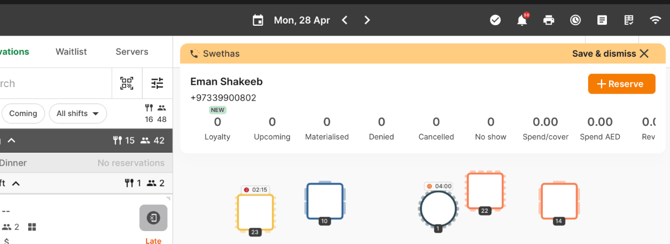
- Within about a second of the phone ringing, a pop-up appears in Eat Manager showing the caller's guest profile — past visits, notes, and preferences — if we recognize the number, or just the phone number if we don't.
- From that same pop-up, your team can create a reservation or save the guest for later, without switching apps or writing anything down.
- The call is automatically logged — both in a restaurant-wide call log and on the individual guest's profile — so there's a record of every call whether it was answered or missed.
No physical PBX box, no extra phone lines, no separate calling hardware — the intelligence lives in the app itself.
Setting Up Eat Dial
Prerequisites
- An Android phone
- An active Eat App account and login credentials
- An Extension ID, usually assigned by your restaurant's Eat App administrator
Steps
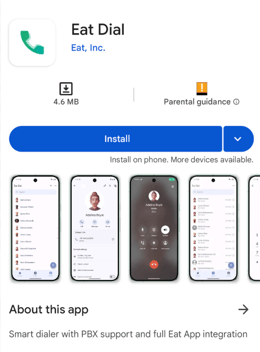
Install Eat Dial. Search for "Eat Dial" on the Google Play Store, or use the direct install link.
Log in. Open the app and enter the username and password associated with your Eat App account. You'll see a confirmation once login succeeds — this links your device to your restaurant's communication system.
Confirm your Extension ID. After logging in, Eat Dial will prompt you to confirm your Extension ID. If you don't have one yet, contact your restaurant administrator — you can also adjust it later from within the app's Settings.
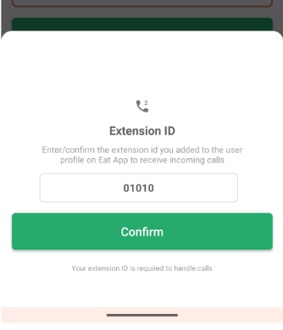
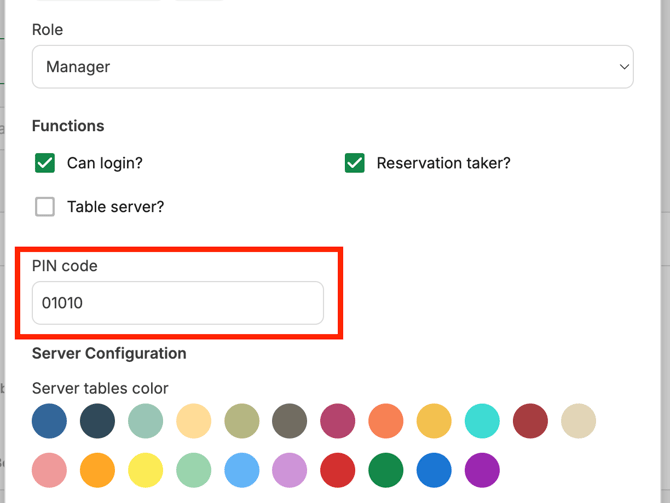
Make sure the extension ID matches your user extension in Account Managment > Users:
Grant the requested permissions (phone, contacts, and notifications) when prompted — these are required for caller ID and call logging to work.
Set Eat Dial as your default dialer. Go to your phone's Settings > Apps > Default apps > Phone app (naming may vary slightly by manufacturer) and select Eat Dial.
Try it out
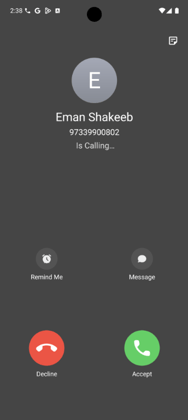
Receive a call and open Eat Manager while the phone is ringing — you should see a pop-up with the caller's details appear in real time. That confirms the integration is working end to end.
Where to find your call history
- Restaurant-level call log: lists every call made across the restaurant, with the user, timestamp, and status. Searchable and filterable by date.
- Guest-level call history: open a guest profile, or start a new reservation and select Recent Callers, to see that guest's call history specifically.
The Value It Adds
- Guests feel recognized before you even say hello. Your team sees who's calling and their history in real time, so a regular's usual table or dietary note is already in view.
- Nothing gets lost to a scribbled note. Every call is tied to a guest profile and a reservation automatically, instead of living on a sticky note at the host stand.
- No hardware investment required. Restaurants that can't justify a full PBX system still get PBX-level intelligence, using phones they already own.
- Faster service at first contact. Because guest context is already on screen when the call connects, staff can personalize the interaction and resolve requests without asking the guest to repeat themselves.
If Calls Stop Appearing in Eat App
Occasionally, Android can reset which app is set as the default dialer — usually after an OS or Phone app update, or after installing a third-party caller ID app like Truecaller. If that happens, calls stop triggering the Eat Manager pop-up.
Quick fix: go to Settings > Apps > Default apps > Phone app and re-select Eat Dial. If it keeps reverting, disable auto-updates on that device and remove any competing calling app.
If calls still aren't coming through after that, reach out to your Eat App support contact with the restaurant name, the outlet(s) affected, and the device model.