![Eat App Logo - Small.png]](https://restaurant.eatapp.co/hs-fs/hubfs/Eat%20App%20Logo%20-%20Small.png?height=40&name=Eat%20App%20Logo%20-%20Small.png)
The AI WhatsApp bot handles guest conversations on your restaurant's WhatsApp number automatically, letting guests book, change, or cancel a reservation without a team member needing to step in. But guests don't only ask about bookings; they also ask things like "What time do you open on weekdays?", "Do you have a kids' menu?", or "Is there parking nearby?"
The Knowledge Base Editor is where you teach the chatbot the answers to those questions. Every entry you add becomes something the AI can draw on to help guests, in your restaurant's own voice.
Filling this out well has a direct payoff: the more complete your knowledge base, the fewer routine questions land in your chat inbox as tickets, and the faster guests get accurate answers, any time of day.
Finding the Knowledge Base
In your Eat App account, navigate to Integrations > Chatbot Knowledge Base Editor. You will land on the main overview page:
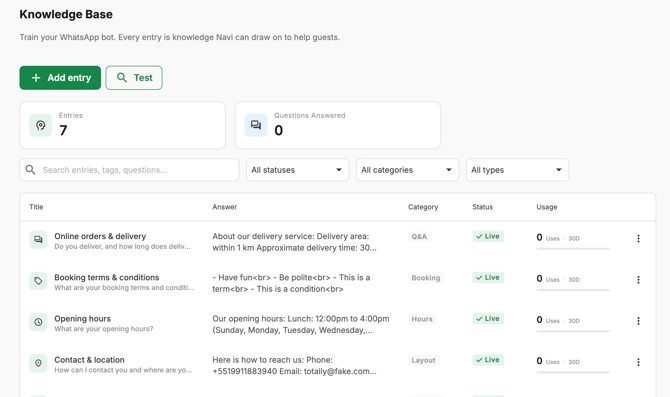
From here you can see, at a glance:
- Entries – the total number of knowledge base items you've created
- Questions Answered – how many guest questions the chatbot has resolved using your entries
- A search bar and filters for status, category, and type, so you can quickly find and manage entries as your knowledge base grows
- An Add entry button to create new content
- A Test button to check how the AI responds to a question before guests ever see it
If you're just getting started, you'll see a prompt to add your first entry. There's no minimum you need to add before the chatbot starts working, but the more entries you build up, the more guest questions it can handle on its own.
Adding a New Entry
Clicking Add entry opens the entry editor, with a Live preview panel on the right so you can see exactly how your answer will look in a real guest conversation as you type:
.gif?width=670&height=335&name=Screen%20Recording%202026-07-22%20at%2016.09.06%20(1).gif)
Here's what each field does:
Title - A short internal label for the entry (for example, "Weekday opening hours"). This is just for your own organization — guests never see it.
Category - Group related entries together, such as Booking & policy. Categories make it easier to filter and manage your knowledge base as it grows, and they help the AI understand the context of a question.
Type of knowledge - This tells the chatbot how to use the entry. There are four types to choose from:
- Quick reply – A short, standalone answer to a common question (hours, parking, dress code, and similar). This is the most common entry type for simple facts guests ask about repeatedly.
- Q&A Pair – A specific question paired with its answer. Use this when you want to anchor an answer to the exact phrasing guests tend to use.
- Menu item – Details about a specific dish, drink, or menu section.
- Hours & timing – Anything related to opening hours, kitchen last-orders, holiday hours, or shift timing.
Question (what a guest might ask) - An example of the phrasing a guest might use. This is required for Q&A Pair entries and optional for the other types — even when it's optional, adding one helps the AI recognize more ways guests might ask about the same thing.
Content - The actual answer, written in a rich text editor that supports formatting like bold, headers, quotes, and lists. This field has an 8,000-character limit, shown as a live counter at the bottom of the box.
A couple of tips make a real difference here:
- Write in your restaurant's voice. The chatbot will use this text more or less as-is when replying, so it should sound like you.
- Be specific. Include exact times, prices, and locations rather than vague descriptions — "Kitchen closes at 10:30 PM, last table seating at 10 PM" is far more useful to a guest than "we close late."
Tags - Keywords that help the AI recognize when an entry is relevant. As you type your content, the editor will suggest relevant tags automatically (for example, booking-policy or quick-reply) — you can accept these or add your own.
End date - Optional. If an entry only applies for a limited time (a seasonal menu, a holiday hours notice), set an end date and the chatbot will automatically stop using that entry once it passes. Leave it blank for anything that doesn't expire.
Document - You can attach a PDF, Markdown, or TXT file (up to 10 MB) instead of, or alongside, typed content. Eat App automatically extracts the text from the document and uses it to answer guest questions — handy for uploading an existing FAQ sheet, menu, or policy document rather than retyping it.
Live - The toggle at the bottom controls whether the entry is active. Turn it off to save a draft without having the AI use it yet, and switch it on when you're ready to go live.
Once everything looks right in the live preview, click Save.
Testing Your Knowledge Base
Before guests start relying on an entry, use the Test button on the main Knowledge Base page to ask the chatbot a question yourself and confirm the response is accurate and on-brand. This is worth doing any time you add or edit an entry, especially for anything involving pricing, policies, or hours, since these are the details guests are most likely to hold you to.
.gif?width=670&height=361&name=Screen%20Recording%202026-07-22%20at%2016.02.08%20(1).gif)
Keeping It Up to Date
A knowledge base is only as good as its maintenance. A few habits worth building in:
- Review entries regularly, especially hours and menu items that change seasonally.
- Use categories and tags consistently so entries are easy to find and update later.
- Set end dates on anything temporary so outdated information doesn't linger.
- Check the "Questions Answered" counter periodically to see how much the chatbot is handling on its own, and look for patterns in guest questions that aren't covered yet — those are good candidates for new entries.
The Knowledge Base Editor is how you turn the WhatsApp bot from a booking assistant into a full front-of-house helper. A well-maintained knowledge base means fewer repetitive questions in your inbox, faster answers for guests at any hour, and a WhatsApp experience that consistently sounds like your restaurant.