![Eat App Logo - Small.png]](https://restaurant.eatapp.co/hs-fs/hubfs/Eat%20App%20Logo%20-%20Small.png?height=40&name=Eat%20App%20Logo%20-%20Small.png)
In this article:
Reservations in Eat App are fully dynamic, allowing restaurant operators to make real-time changes—whether the reservation was created through an online booking widget or manually by staff.
Editing a Reservation in Eat App
Editing a reservation in Eat App is quick and can be done at any point during the guest’s dining journey.
-
Go to Table Manager → Floor View.
-
Under RESERVATIONS tab, select the guest’s reservation you wish to edit.
-
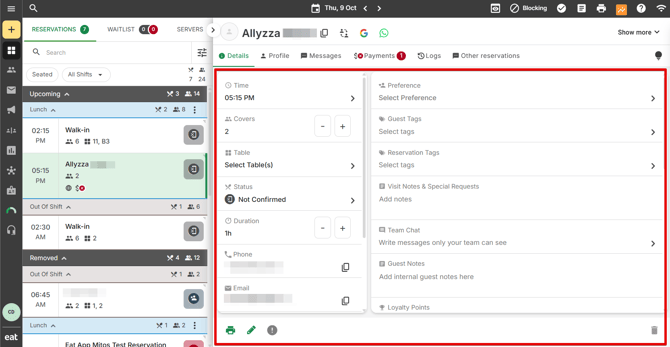
Update any details as needed — such as time, guest information, or table assignment, and others.
Updates are immediately saved without having to click an extra button to save the changes.
Editable Fields in a Reservation
You can modify several details of a reservation directly within Eat App to keep information accurate and up to date.
Main Reservation Fields
-
Time – Adjust the reservation start time to accommodate guest requests or delays.
-
Covers – Update the party size if more or fewer guests arrive than originally planned.
-
Table – Reassign the guest to a different table as needed.
-
Status – Change the reservation status to keep your team informed of each guest’s progress throughout their dining experience.
-
Duration – Modify the length of time allocated for the dining experience.
-
Date – Update the reservation date if the guest wishes to reschedule.
Additional Details (from the Reservation Details tab)
-
Preference – Allow you to record or set guest seating or experience preferences (e.g., indoor/outdoor, smoking/non-smoking). These can be customized in Eat App settings so guests or staff can select them during the booking process.
-
Guest Tags – Used to label and categorize guests based on specific attributes, behaviors or dietary restrictions (e.g., VIP, Regular, Allergic to Nuts). These tags help staff quickly identify guest preferences and improve personalized service.
-
Reservation Tags – Used to classify or flag individual reservations (e.g., Birthday, Large Group, Special Request). This makes it easier for the team to track and manage specific types of bookings.
-
Visit Notes & Special Requests – Record specific guest needs or instructions
-
Team Chat – Use for internal staff communication related to that reservation
-
Guest Notes – Use to add internal notes about the guest
-
Loyalty Points – Adjust points (add or deduct) if a loyalty program is set up
-
Reservation Taker / Employee – Assign or update the staff member who created or is managing the booking.
-
Booking Source – Displays where the booking originated (note: this field cannot be edited for online or web reservations).
- Custom fields - Update details / guest responses on additional information required and set up by the restaurant
To learn more about messaging your guests about updates to their reservations click here.
Reservation Status
Your reservations can move through a variety of different reservation statuses that reflect their stage in the diner lifecycle. We've grouped all the statuses based on this lifecycle allowing you to easily filter/sort based on these properties.
The lifecycle stages and their respective statuses are as follows:
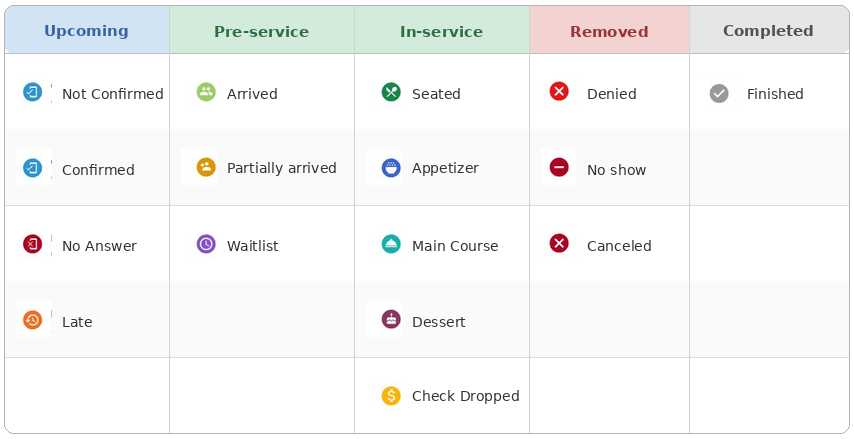
And you can also create and define your own statuses to reflect how your team actually works, helping everyone stay aligned and efficient.
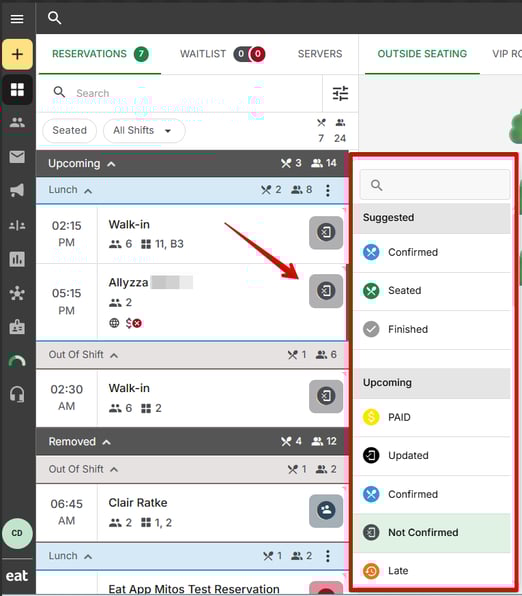
Aside from the Reservation details tab, Reservation status can also be updated directly from the Reservation List by clicking the reservation status icon.
Reservation history
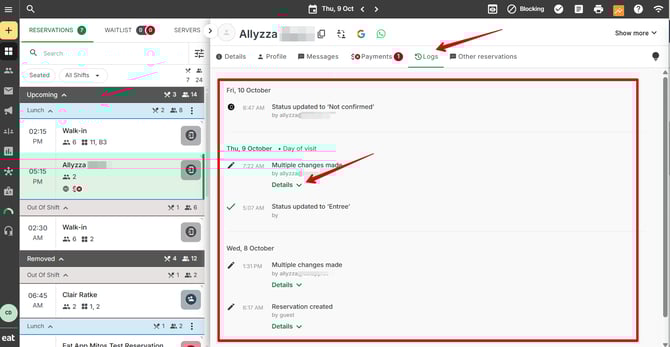
You can view the history of all changes made to a reservation in the Logs tab.
Each entry shows a summary of the action or change performed, along with the user information of the person who made the modification.
Click the dropdown arrow next to an entry to expand and view more detailed information about that specific change.