![Eat App Logo - Small.png]](https://restaurant.eatapp.co/hs-fs/hubfs/Eat%20App%20Logo%20-%20Small.png?height=40&name=Eat%20App%20Logo%20-%20Small.png)
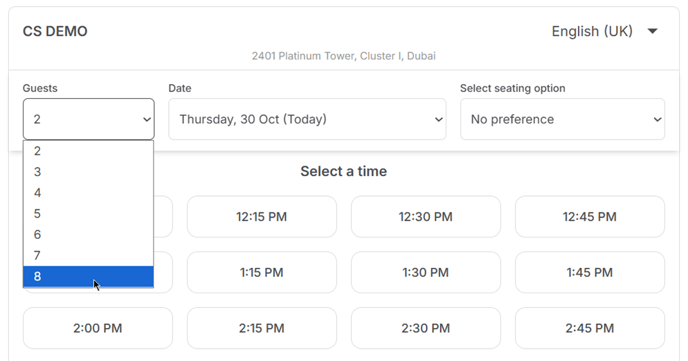
The maximum number of guests a customer can select on the reservation widget is determined by:
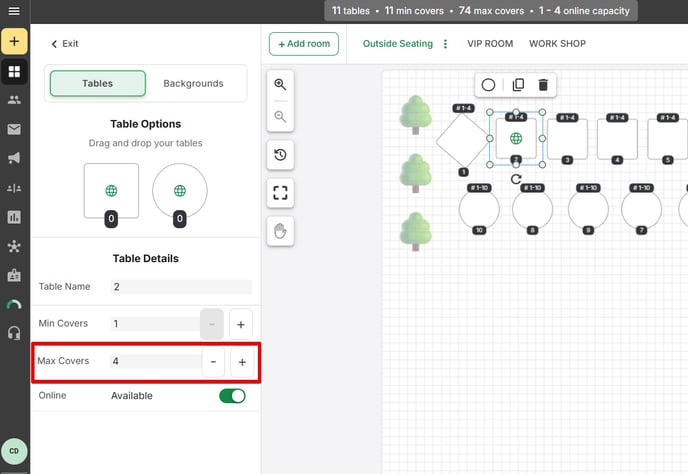
- Your table capacities (max covers), and
- Maximum covers per reservation
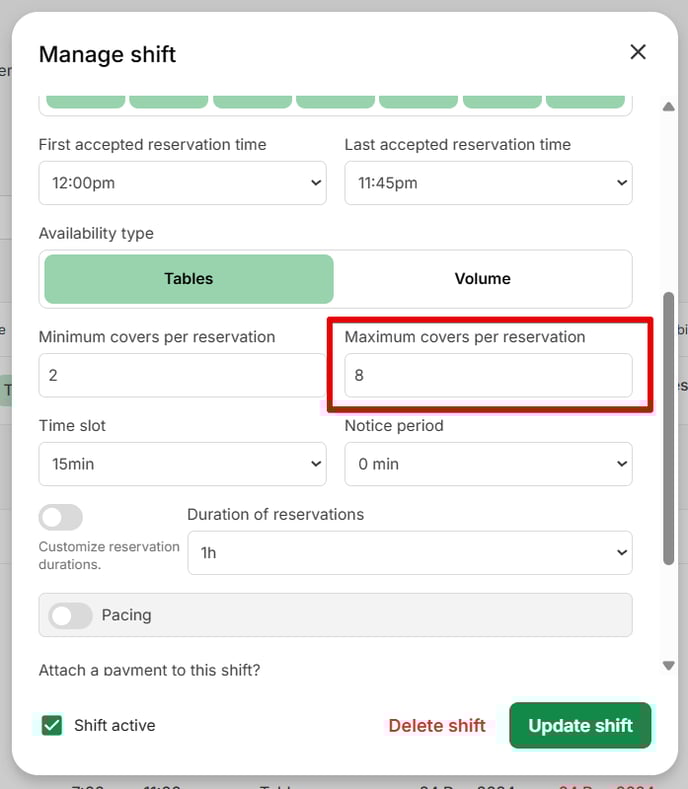
If there’s no single table that can accommodate the number of guests set as the maximum, the widget will not display that maximum guest option.
Table grouping will allow you to combine multiple tables to accommodate larger parties. When table groups are set up, the system automatically assigns large reservations to these groups, providing a smoother booking experience and eliminating the need for guests to create multiple reservations for one large group.
Types of Table Grouping
- Old Table Grouping:
In the old table grouping setup, you must manually define which tables can be grouped together. The total number of covers available for a group is based on the combined maximum capacities of the tables in that group.
Each possible table combination needs to be configured manually. If any table within a group is already booked, that combination becomes unavailable for new reservations.
For example, if you want to allow different grouping options, you’ll need to create each combination separately — such as:- Tables 1-2-3-4-5
- Tables 1-2-3-4
- Tables 1-2-3
- Tables 3-4-5
and so on.
- New Table Grouping:
You simply select the tables that are allowed to be grouped. The system will then automatically create and assign the best table combinations when a guest makes a booking online.
How to group your tables using Old Table Grouping
- Sign in to Table Manager
- Under the Availability tab, go to Group Tables
- Toggle OFF New Grouping from the top of the page.
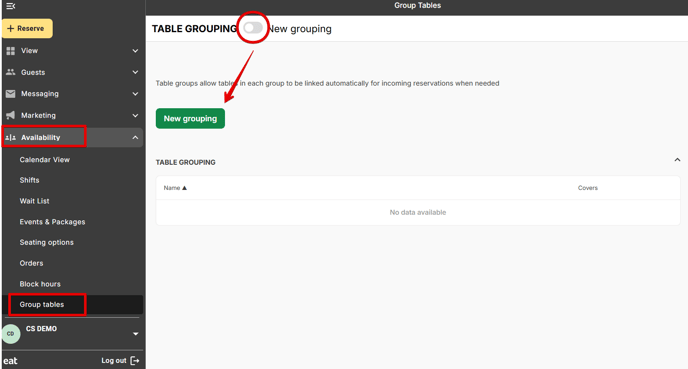
- Choose the tables you want to group. The minimum and maximum covers are indicated on the upper part for your reference.
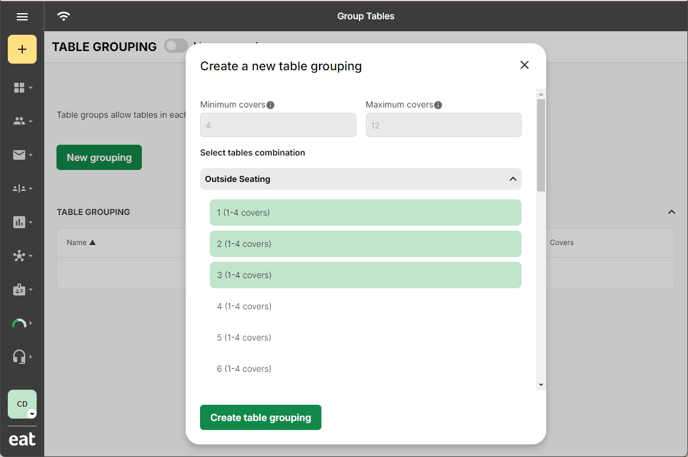
- Click Create Table Grouping to finish the process.
To create multiple table group combinations, you can either repeat the same process or click the 3 dots beside the group created, select Duplicate, then add or remove tables from the grouping as needed.
How to group your tables using New Table Grouping
- Sign in to Table Manager
- Under the Availability tab, go to Group Tables
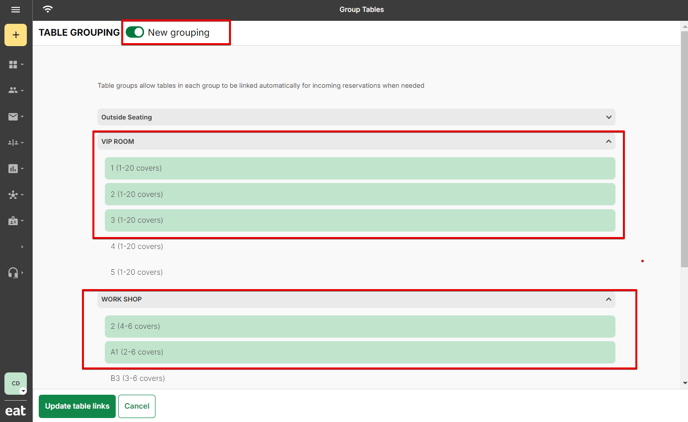
- Toggle ON New Grouping from the top of the page.
- Select the tables you want to group and then click Update table links.