![Eat App Logo - Small.png]](https://restaurant.eatapp.co/hs-fs/hubfs/Eat%20App%20Logo%20-%20Small.png?height=40&name=Eat%20App%20Logo%20-%20Small.png)
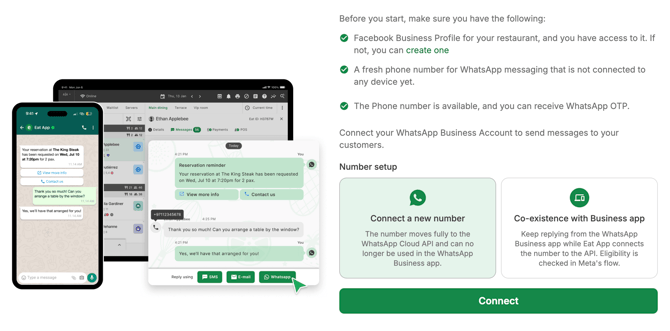
This guide shows you how to connect a WhatsApp number to Eat App so reservation confirmations, reminders, and guest replies flow through WhatsApp instead of (or alongside) email and SMS.
Navigate to Integrations > Whatsapp and click Connect. You will be prompted to pick the integration type:
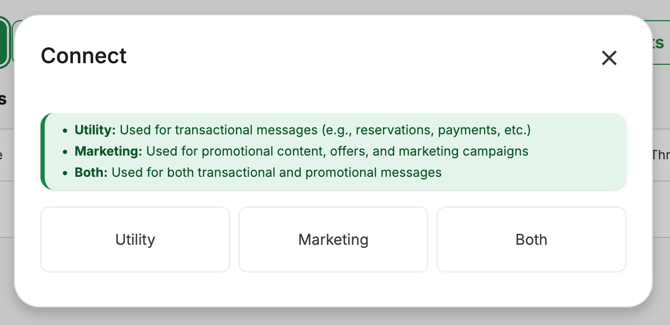
We recommend selecting Both, as this will allow your integration to send Marketing and Utility messages, instead of a single message type.
There are two ways to connect, depending on whether the number you want to use already has WhatsApp on it:
- Path A — Connect a brand-new number: use this if the number is not connected to a personal or Business WhatsApp account.
- Path B — Connect your existing WhatsApp number (coexistence): use this if you already message guests from that number in the WhatsApp Business app on a phone, and you want to keep using the app while also sending automated messages through Eat App.
Both paths go through Meta (the company behind WhatsApp), since Eat App connects to your WhatsApp Business Platform
We always recommend checking the current status of your WhatsApp account, as most blockers stem from existing restrictions in WABAs. Preferably, ensure your account is verified prior to connecting!
.png?width=670&height=514&name=Screenshot%202026-08-26%20at%201.39.01%20PM%20(1).png)
Before you start, make sure you have:
- Admin access to the Eat App account for the restaurant/venue you're connecting.
- Access to a Meta Business Manager account (or the ability to create one) — this is Meta's business account system, separate from a personal Facebook account.
-
The phone number you want to use for WhatsApp, with access to receive a verification code on it (by SMS or phone call).
- If you're using Path B: the WhatsApp Business app already installed and active on that number, on version 2.24.17 or later.
- 10–15 minutes, plus patience for Meta's review steps (see What happens after you connect below) — some approvals take up to 48 hours.
Connect a brand new number
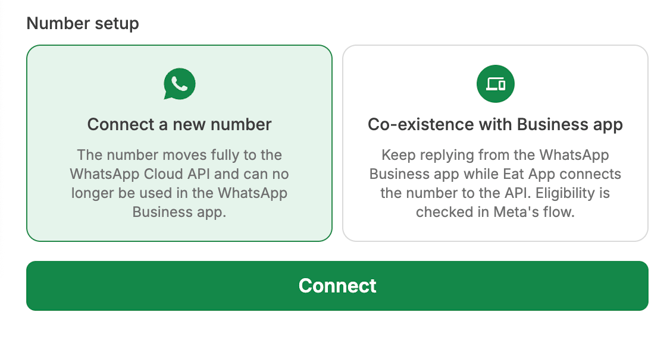
Use this path if the number has never been used with WhatsApp before (no personal WhatsApp, no WhatsApp Business app).
- Click Connect
- Log in with your Facebook/Meta credentials.
- Select or create a Meta Business Portfolio for your restaurant.
- Select Create a WhatsApp Business Profile (or pick an existing WABA if you already created one previously).
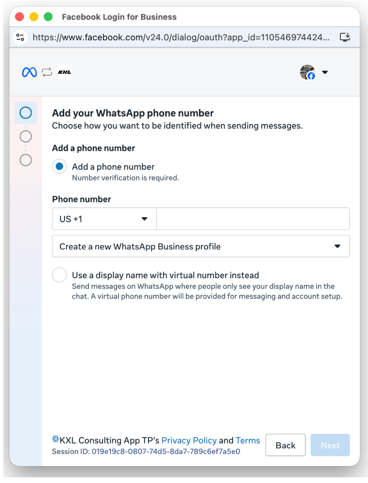
- When asked how you'd like to use the number, choose the option for a new number (not "use your existing WhatsApp number").
- Enter the phone number and choose how to receive your verification code: text message (SMS) or phone call.
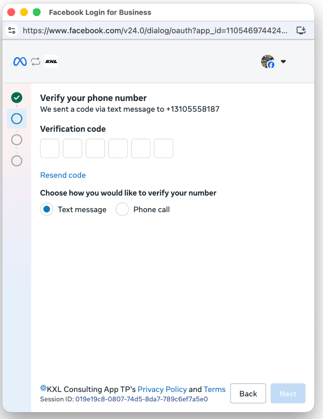
Tip: If you don't receive a phone call OTP within a minute or two, don't keep retrying the call, switch to text message instead. This is the most common snag in this step, and SMS is more reliable.
- Enter the OTP you received, then click Next/Confirm.
- Click Finish to complete the signup. Eat App will now show the number as connected.
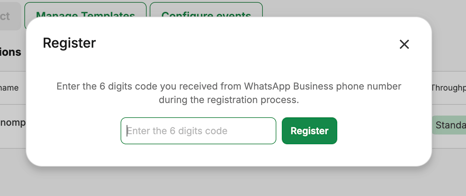
IMPORTANT: Make sure you save or write down the verification code. We need to inform the same code again after the Meta Pop-up closes in order to register in Eat App.
- Meta automatically generates a set of default message templates for your account (used for confirmations, reminders, etc.). Some of these will initially show as "In review" — that's expected.
You can find Meta's guidelines here.
Connect your existing number (co-existence)
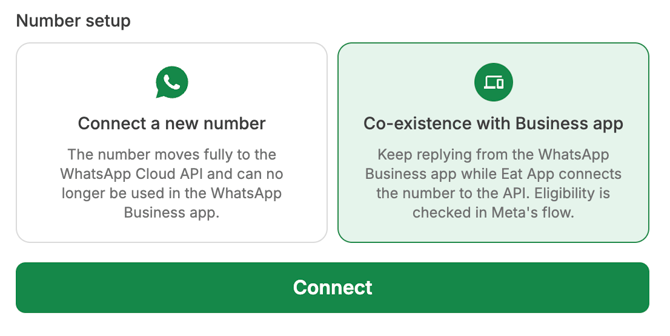
Use this path if the number is already active in the WhatsApp Business app and you want to keep using that app on your phone (e.g., to chat one-on-one with guests) while Eat App also sends automated messages from the same number.
-
Click Connect.
-
Log in to Meta's signup window and select/create your Meta Business Portfolio, as above.
-
When asked how you'd like to use the number, choose use your existing WhatsApp number (this is the co-existence option — it will feel like it's reusing the number you already message guests from, rather than creating a new one).
-
Enter the phone number currently used in your WhatsApp Business app.
-
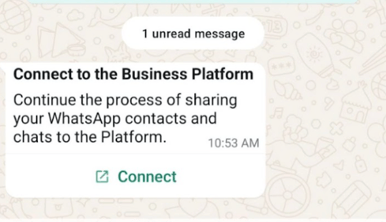
Meta sends a message inside your WhatsApp Business app itself (from Meta's official account) containing a verification code and a prompt to tap Connect to the Business Platform.
-
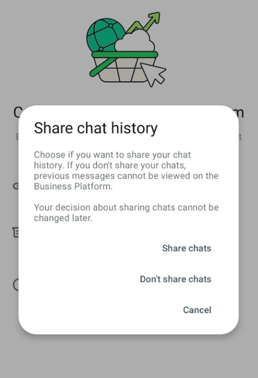
A prompt appears in the WhatsApp Business app asking whether to share your chat history. This choice is permanent, so decide deliberately:
-
Sharing imports your recent chat history so it's visible on both the app and in Eat App's inbox.
-
Copy the verification code from the app and paste it back into the Eat App/Meta signup screen to confirm.
-
Click Finish. Eat App begins syncing with your number.
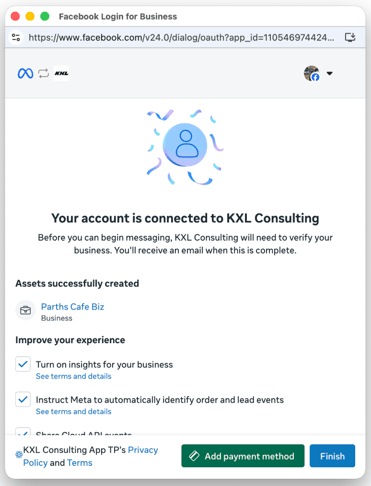
Important: You have roughly 24 hours after this step for the initial message history sync to complete. Don't uninstall or log out of the WhatsApp Business app during this window.
Things to know about coexistence
Once a number is running in both the WhatsApp Business app and Eat App, a few things change:
- Keep the app active. Open the WhatsApp Business app on the phone at least once every couple of weeks — Meta disconnects numbers that go quiet for too long.
- Group chats stay in the app only; they won't appear in Eat App's inbox.
- Disappearing messages, view once messages, and live location sharing get disabled for chats that are shared between the app and Eat App.
- Broadcast lists in the app become read-only after connecting.
- Companion devices (e.g., a linked tablet or desktop app) may get unlinked during the switch — you may need to relink them afterward.
- There's a combined sending speed limit across the app and Eat App while coexistence is active, so very high-volume campaigns may briefly queue.
What happens after you connect
Whichever path you used, a few things happen next:
- Business name approval: Until Meta approves your business display name, guests will see your phone number instead of your restaurant's name on WhatsApp. This review typically takes 24–48 hours. If it doesn't resolve automatically, go to your WhatsApp settings in Meta Business Manager and fill in your business address and email — verified business details significantly improve approval chances.
- Daily messaging limit: New numbers start at a cap of roughly 250 conversations per day. This increases automatically (often within a day or two) as you send genuine, "healthy" messages — mainly transactional messages (like confirmations) to real, active WhatsApp numbers. Sending marketing blasts to numbers that don't have WhatsApp increases your failure rate and can slow down that increase, so hold off on marketing campaigns for the first couple of days and focus on transactional traffic.
- Guest replies: Once approved, guests can reply directly on WhatsApp, and their replies show up in Eat App's chat inbox for the restaurant to answer — the same place staff already see other guest messages.
- Marketing vs. transactional balance: Confirmation and reminder messages (utility/transactional) are billed and tracked separately from WhatsApp marketing campaign messages. Running a marketing campaign won't use up the balance you rely on for confirmations, and vice versa — but you do need to top up a WhatsApp marketing package separately before scheduling a campaign.
- AI chatbot: Once your WhatsApp integration is fully connected, you can optionally enable Eat App's WhatsApp AI chatbot so guests can make reservations directly through WhatsApp conversations. This is a separate toggle from Eat App's Navi assistant.
Verify it worked
- Send yourself a test reservation confirmation and confirm it arrives on WhatsApp from the connected number rather than Eat App's shared number.
- Reply to that test message from your phone and confirm it appears in Eat App's chat inbox.
- Check your WhatsApp settings in Meta Business Manager to confirm the number status shows as Connected and see whether the display name is Approved or still Pending review.
Common issues
- Phone call OTP never arrives: Switch to the SMS/text message option — this resolves it in almost all cases.
- Guests still see a phone number instead of your restaurant name after 48 hours: Go to Meta Business Manager and complete your business profile (address, email, website) to help the automatic review along.
- Messages aren't sending after connecting a brand-new number: Newly created WhatsApp accounts can take Meta anywhere from a few minutes to a couple of hours to fully activate on their end — if nothing sends within an hour, contact support.
- You already tried Path A by mistake and want to switch to coexistence, or vice versa: Contact Eat App support before retrying — switching paths after a number is partially connected in Meta can require a reset on Meta's side.